
Want uncensored AI image generation without getting lost in setup guides? There’s a simpler way. Here’s how to create on your own computer with Deep Art Creator – without building a complicated workflow.

You have the picture in your head. Now you just want to make it. Deep Art Creator gives you a simpler way to do that on your own computer. So here’s how to get past the technical hurdles and start creating.
Imagine a postcard from Mallorca: turquoise water, warm sand and an adult woman walking along the beach, topless, seen from behind. A little nostalgia. A little summer freedom.
Now imagine an online image generator turning that idea down. First, you rewrite the prompt. Then you try another description or search for another app. All this work for a summer postcard.
There must be a way to create the picture on your own computer. So you start looking.
Local AI Sounds Perfect. Then You Open the Instructions.
During your search for uncensored AI image generation, you discover local AI. In other words, software that creates images on your computer without sending each request to a cloud image service for approval.
That sounds like what you’ve been looking for. Until you try to get started.
First, one tutorial asks you to download files and put them in the right folders. Another opens a screen full of connected boxes. Meanwhile, the next wants you to type commands into a terminal. As a result, you’re following setup instructions before you’ve made a single picture.
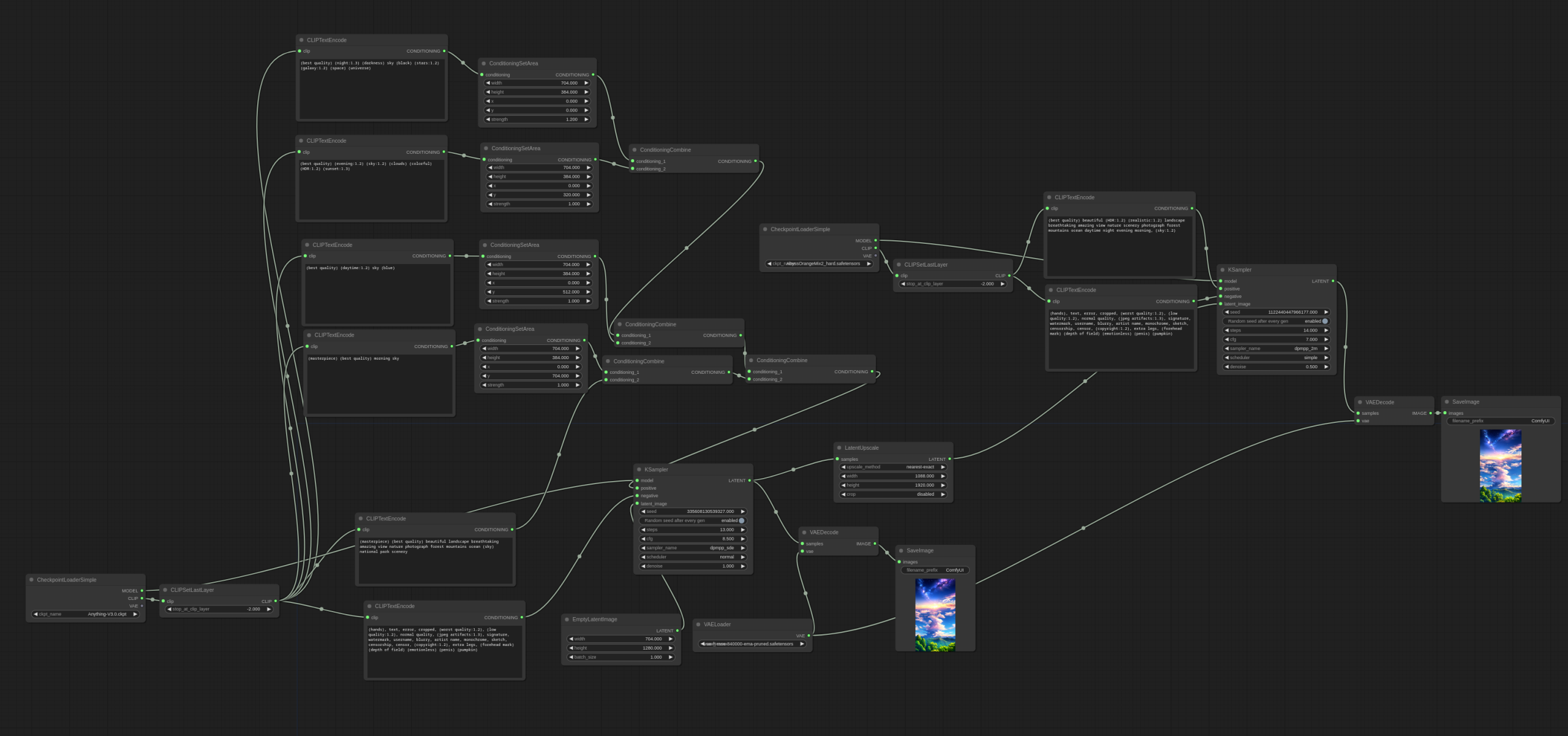
Then comes the hardware advice. Graphics cards. Graphics memory. Is your computer even good enough? Does making a postcard really mean buying new equipment?
You wanted to create an image. Instead, you’ve ended up with a technical project.
Meet Deep Art Creator. Get Back to Creating.
This is the part we wanted to make easier.
Deep Art Creator brings local AI image generation into a straightforward desktop app. It handles the technical setup, so you can focus on what you want to make. That means no node graphs to connect, no terminal commands to learn, and no hunting down files yourself.
And you don’t need an expensive dedicated graphics card just to get started. For example, on Windows, Creator can generate images using your computer’s regular processor. On Macs with Apple Silicon, it can also use the built-in graphics for acceleration.
You bring the idea. Deep Art Creator brings it to life.
If you’ve been searching for an uncensored AI image generator but stopped at the setup instructions, welcome. This is local AI you can get on with using.
Back to That Summer Postcard
The beach picture above was made with Deep Art Creator. With just a written description, you can create warm sunlight, turquoise water and a relaxed Mediterranean scene.
Open the app and describe the picture. Then click Start.
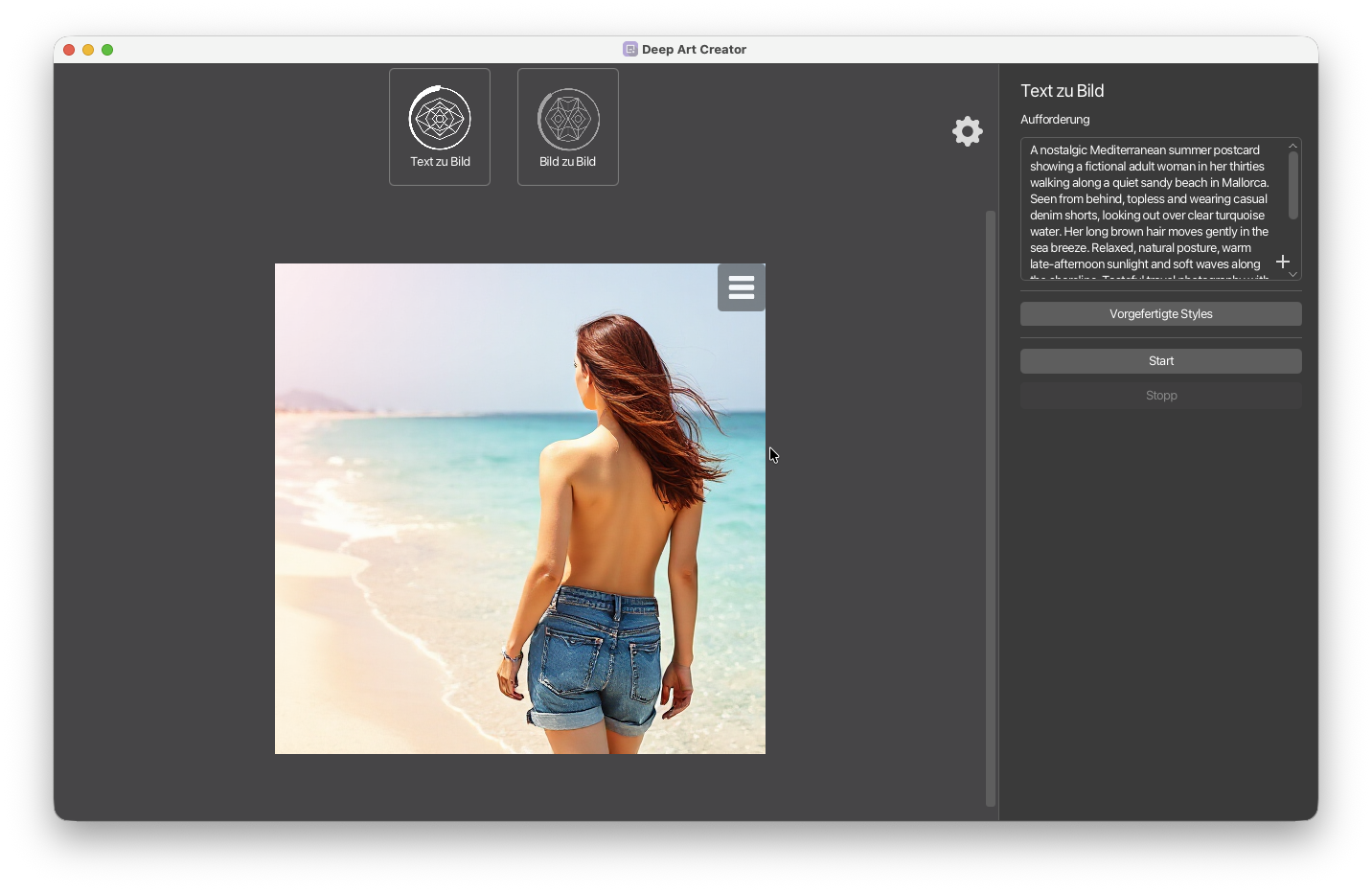
Want warmer light, a quieter beach or more of that faded holiday-photo look? Simply change your description and create another version. That way, your attention stays on the picture, instead of the software behind it.
The generation happens on your computer. So your prompts and pictures stay there for processing, with no cloud image-generation service deciding whether to accept each request.
A Little More Time. A Lot More Control.
However, your computer may take longer than a fast cloud service, especially when generating on a regular processor. Speed depends on your hardware and settings.
That’s the trade-off: give your computer more time, and keep the generation on your own machine. You can explore local AI with the hardware you already own, without turning your creative idea into a lesson in software setup.
In the meantime, get a coffee. Then come back to your image and keep creating.
Try Deep Art Creator
Your computer, your images, your creative freedom. Stop working your way through setup guides and start making the picture you’ve been thinking about.