
The demand for large volumes of high‑quality AI‑generated images is skyrocketing — especially among creative agencies, design teams and production houses. If you need to produce dozens, hundreds or even thousands of visuals in a short timeframe, doing them one by one just won’t cut it.
That’s where batch processing in Deep Art Effects Pro makes the difference. You can automate entire workflows, save time, and maintain consistent quality — whether you prefer the GUI version or the command‑line interface.
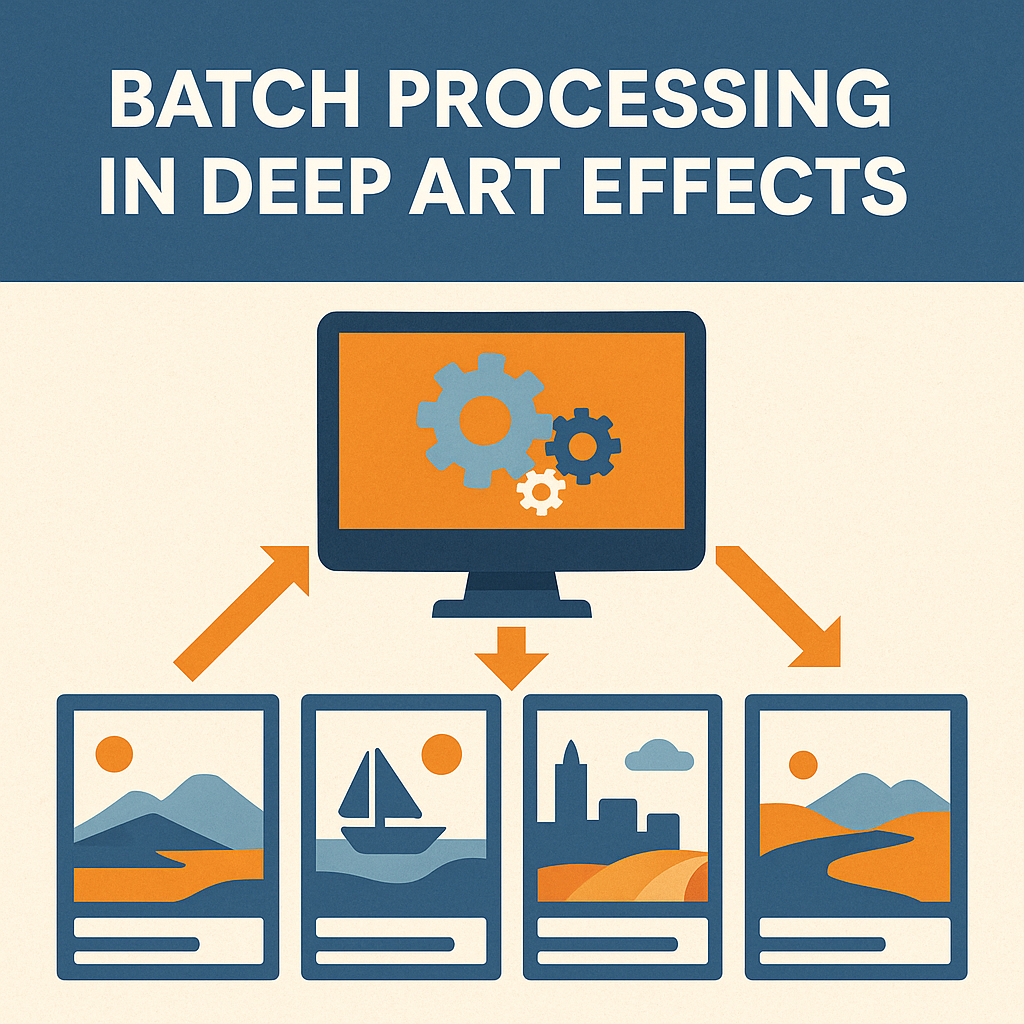
Why Batch Processing Matters for Agencies & Designers
When working at scale, a few key challenges arise:
- Time pressure & deadlines — fast turnaround is essential
- Consistency across visuals — same style, brand identity, feel
- Volume efficiency — many images with minimal manual effort
- Cost‑effectiveness — reduce labor and increase output
Batch processing addresses all these by enabling you to apply the same settings, style, prompt or model to multiple files automatically. For agencies, this means more creative output with fewer clicks.
How to Use Batch Processing in Deep Art Effects Pro
Desktop Version (GUI) – quick approach
- Open Deep Art Effects Pro on your PC or Mac.
- Choose “Batch Processing” from the menu.
- Select the folder with your source images.
- Choose your desired style, model.
- Configure settings like resolution, model, number of images.
- Click “Start Batch” and let the software run.
- All processed images will be saved to your output folder.
Video Demonstration
Watch the step‑by‑step guide for batch processing in Deep Art Effects Pro:
Command‑Line Interface – for automation & scripts
- For deeper automation or integration into pipelines, the CLI version allows script‑based usage.
- Example command:
dae_pro_cli --input ./images/ --style "VanGogh" --model customModel.sdm --output ./output/ --threads 4 - This means you can integrate batch processing into tasks like nightly rendering, CI pipelines, or cloud‑infrastructure (if you legally manage hardware).
Best Practices & Tips for Efficient Batch Workflows
- Organise input folders by project, date or client so you can easily track batches.
- Use preset styles or custom models to ensure visual consistency across outputs.
- Test a small batch first to verify prompt‑settings before scaling up.
- Use GPU hardware efficiently — set number of threads or GPU allocation for speed.
- Keep original images and outputs separate for traceability.
- Document versioning (style versions, prompt variations) to maintain brand consistency.
Real‑World Use Cases for Batch Processing
- A design agency creating 500 social media posts for a brand campaign in one day.
- A studio generating concept images for a game, using same model across assets.
- An e‑commerce company applying style transfer to thousands of product photos.
- A marketing team repurposing stock photos into branded artwork overnight via CLI.
Conclusion – Scale Your Creativity Without Sacrificing Quality
Batch processing isn’t just a convenience — it’s a competitive advantage for creatives working at scale. With Deep Art Effects Pro, you get the power to produce many AI‑images efficiently, while maintaining consistency, quality and creative freedom.
👉 Ready to scale your AI art workflow? Try Deep Art Effects Pro now and discover how batch processing can transform your creative pipeline.